Video has been thriving in social media platforms such as Twitter, Facebook, Instagram, Snapchat, and Tik Tok for the last couple of years. With that in mind, it’s only logical that you want to upload videos on Twitter, yet you’ll be surprised because the time limit for a video is way lower than other platforms.
Contrary to other platforms were you can upload 20-40 minute videos, Twitter has restricted its platform to just 140 seconds, just as they used to limit their tweets at 140 characters 😉
That’s equivalent to 2 minutes and 20 seconds total, which means you need to be very careful with what you upload in order to fit all the content and ideas inside that time limit.
Will they change it to 280 seconds now that they have doubled the text limit? Who knows for sure…
Besides that, Twitter has the following video limitations in terms of resolutions and aspect ratios:
Minimum resolution 32×32 (potato quality)
Maximum resolution 1920×1200 (horizontal) or 1200×1900 (vertical videos)
Aspect ratios: 1:2.39 – 2:39:1
Maximum frame rate: 40 fps
Maximum bitrate: 25 Mbps
Maximum file size: 512 MB
Supported formats: MP4 and MOV
As you can see, the limits on video are quite different to Youtube, for example, where you can upload 4K or 8K video recently at 60 FPS and different aspect ratios.
That’s just the way Twitter works and there’s not much you can do about it. If you upload videos directly from Twitter you’re going to need to cut them to 2 minutes, 20 seconds. This isn’t that bad considering most people Tweet from their phones where 4K or 8K are not needed, but Twitter’s time limit can be frustrating at some times.
How to bypass the 140 second Twitter video limit
There are 2 ways to bypass the video limit and show longer videos to your Twitter audience.
Uploading to YouTube
One is very simple and I wouldn’t really count it as an option, yet it works for some people so we might as well mention it: upload your videos to Youtube and post the link in your Twitter account!
Yep, it works and you can upload longer videos and share the link. Twitter will automatically create a card with the thumbnail of your YT video and it will get a decent CTR, however, this isn’t the best way to do it.
Also, you might reach fewer people as you’re not keeping your audience inside Twitter, and Youtube isn’t widely used for vertical videos, in case you’re uploading vertical content.
If you still want to upload longer videos without linking to an external property (possibly owned by Google) then there’s a second option.
Use Twitter Media Studio
Who would believe it? Twitter has a tool that allows you to upload videos up to 10 minutes long!
Twitter Media Studio is a platform to manage, measure, and monetize your Twitter videos. It’s just an easy way to organize and upload any media content in general, including images, GIFs, and videos. It also allows you to add captions, titles, or setting thumbnails for your videos, which is awesome and would definitely help you get more views per video.
You need to log in from a computer or browser to get access to it. Just go to your left menu and select “more” then go to “media studio“.
You’ll find all of your media from the logged account in there, and you can upload any video as long as it’s an MP4 or MOV. After the upload is over, you can edit your video by adding a thumbnail, subtitles, etc.
Once you’re done, just click on “tweet the video” and schedule your video or publish it right there.
Problem solved.
If you can’t see the “Twitter Media studio” option in your menu you might need to access your Twitter ads account for the first time and go to the “creatives” tab and then go to “media“. This will connect you to your Media Studio and enable that option for you on future occasions.
Enjoy your 10-minute videos and keep uploading interesting content for your audience.
Please leave a comment if you know of any other method below!
I still remember when I created my first WordPress site. It was 2008 and was looking for some alternatives to move away from Joomla. I ended up using WordPress for more than a decade and I’m still using it for most of my projects, however, lately, I’ve been exploring a new CMS that has been gaining traction and I thought it was new, but in reality, it’s not. Let’s get started with this Webflow vs. WordPress comparison.
Webflow isn’t a new alternative, but somehow it’s gotten more attention in the last year or two. You know how many SaaS companies work. They put in the work for years and suddenly everybody is talking about it 4 years later thinking they’re an overnight success.
I can clearly see in Google trends the way Webflow has been growing since 2015. The interest over time is almost at its peak so far and it will probably keep growing for a while as more and more people get into this new idea of no code to create websites and web applications.
WordPress over the last 5 years has been a declining trend as most people know how to use it and there are many ways to launch a WordPress website without being technical about it.
If you compare Webflow to WordPress though, it’s clear one is much bigger than the other. Webflow is just a drop in the ocean of what WordPress represents in the web industry so far:
Looking at graphs is fun and interesting, so here’s a graph including Wix and Squarespace against WordPress and Webflow:
Wix is one of the biggest website builders online and the trend shows how they have been slowly growing in interest at a steady pace. Not that I use it, as it’s well known for being more for amateur users and people who don’t care much about their website, but I can’t say they haven’t been improving and growing because that would be false.
Squarespace is one of the other contenders that has been growing since its inception in 2013 and I’ve been following them for a while. I even had some Squarespace sites back in the day but moved to WordPress for many reasons.
Since last year I started reading about some alternatives and I tested some of them, including Ghost and Webflow. Ghost is a great platform for bloggers, but it doesn’t fit my needs as it’s more focused on people who want to build paywalls and private content under memberships, such as newspapers.
Webflow on the other hand is a very interesting option and we’ll analyze it today.
Introducing Webflow
As I mentioned before, Webflow isn’t really a new alternative. In fact, they’ve been around for like 7 years, which is a similar time since I discovered Squarespace or Ghost.
However, like any new company, they need to build a base and start working on their features for months or years to gain traction. Nowadays there’s a lot of people recommending no-code tools on Twitter and places where developers or startup entrepreneurs hang out and Webflow is one of them.
Webflow’s main point is to have freedom in terms of design and what you want to achieve with your website, which in short terms means you don’t need to be a developer or coder to create awesome websites with animations and super modern designs.
WordPress as a mature CMS
On the other hand, we have our good old WordPress, which has been around for more than a decade and it started as a blogging tool, but in the last years, it has been growing into something more. You can do anything with a WordPress site, including things such as creating a forum, creating an online store, building a blog, building a community, etc.
In this comparison, we’re going to go over the main features of each one and analyze the advantages and disadvantages as well. I’m an SEO and affiliate marketer, which means I care most about getting traffic and generating money from it. I create my own websites and I make money from them without getting paid by clients.
However, I’ll try to be unbiased and analyze things as if I were new to the industry. I know many people reading this article will be searching for a CMS to work with and they also want it to analyze it from a designer’s perspective, or an agency’s perspective.
Let’s get started with our WordPress vs. Webflow comparison!
WordPress vs. Webflow – Themes
Creating websites with Webflow gives you some freedom to do some awesome stuff if you’re good at design. I mention this because no matter how powerful and amazing a tool is, the result won’t be as good if the person who uses it doesn’t have a clue about design.
However, you can always get started with a template or a theme. The themes market for any CMS is always huge and a great advantage for people who want to build their website with a great design foundation without having to start from scratch with a blank page.
With Webflow, you have a few hundred themes available to get started. Some of them are free, some of them are paid and cost between $30 to $70 USD. This is within the same range as other platforms in general.
You can search for themes for businesses, blogs, eCommerce, portfolios, etc.
To be fair, having hundreds of themes available to get started is a decent number. If you compare this with the number of themes available on other platforms such as Squarespace, you will definitely appreciate the variety.
However, when you put things in perspective against WordPress, you can’t really compare the market.
A quick search for themes in WordPress will get you thousands of results. You can always find and buy themes straight from the Marketplace or just buy/download a theme privately from any developer.
Quantity is not always better than quality, but in the case of WordPress, you can have both.
This means you can find both thousands of free bloated and poorly developed themes, but you also have thousands of great themes with great design and development themes behind them, many of which are free or freemium.
The WordPress theme industry grew a lot in the last decade and many companies focused on that for years, and it definitely shows its maturity. However, since there’s so much to find available, you need to know what to pick or go with some reliable vendors to avoid problems in the future.
If you’re well immersed in the WordPress world it won’t be an issue, but if you’re a first-timer better follow some of the recommended companies around unless you want to end with a slow, poorly coded website or a hacked website in case you go take the free route.
Nevertheless, I think the winner here is WordPress.
Webflow has limited options, most of them super high quality. But WordPress has everything the market can offer at different price points. It’s just not possible to compete there.
Winner: WordPress.
Webflow vs. WordPress – Design
I decided to separate the themes and design because while they might seem like a similar thing, Webflow does things differently and it needs its own category.
Whether you have selected a theme or started from scratch, there will be a time where you need to customize it to your own needs, and the way things get done on WordPress are very different to how you achieve things with Webflow.
Just have a look at the design editor at Webflow:
To me, designing a Webflow site with their visual editor feels like creating a design in a program such as Adobe InDesign, Figma, or any other design tool.
Every element you select can be edited according to its properties and it allows you to build your own layouts in a very powerful way.
No matter what you’re trying to achieve, it can be done with Webflow without being a coder expert and you can add elements and triggers based on actions like scrolling, clicks, hovers, etc.
You have full control of your design to create websites that will make your client’s jaw drop to the floor.
WordPress on the other side started as a blogging platform, and the dashboard shows how it’s really oriented at content creation.
While you can add plugins to add a lot of features, the design area is not its forte. If you have a decent theme, you can enter into the appearance settings and customize many things, including main colors, header, icons, etc.
But in general, the experience is quite simple and the way it works clearly shows it’s not oriented at design. This doesn’t mean WordPress design sucks though. There are thousands of impressive, beautiful designs online made with WordPress, it’s just it normally requires a design/code team or you get started with a great theme and hack your way to achieve what you want.
At the end of 2018, WordPress decided to tackle this issue and launched, Gutenberg, a block editor that allows you to create beautiful pages with blocks and add much more elements to your page to give you that design freedom in an attempt to fight back against popular website builders such as Wix or Squarespace.
I wouldn’t say they’re quite there yet, but it has definitely improved. Between Gutenberg blocks and the page builders available with tons of templates and full customization (e.g. Beaver builder, Elementor, etc.) you can definitely create amazing websites without being a programmer.
However, the experience still feels like you’re in WordPress and not in a design editor as it happens with Webflow, and I’d say the code Webflow generates with every element you add to your website’s design is cleaner and faster, which means you end up with less bloated code and a faster site.
I’m sure the WordPress experience will keep improving towards this in the next few years, but if I had to pick a winner here, it would definitely be Webflow.
Winner: Webflow.
WordPress vs. Webflow – CMS and text editor
Editing your website design is one thing, but editing your website’s content is a very different, yet important task.
It doesn’t matter how good of a design editor you have if adding text and content to it is a difficult task.
With Webflow, you can edit the content the same way you’d edit your design, without using the old dashboard and with a live view all the time that you can update and push to live with the click of a button.
Editing content with Webflow feels like you’re editing a magazine online or something similar. It’s great for a website without much text or content, and the ability to view everything live without having to save the changes and then generate a preview is awesome.
On the other side, we have WordPress, which started as a blogging platform and blogging is what they do best.
Editing content and text in WordPress is simple, and it feels like you’re working in a Microsoft Word document or something similar. You still get the WordPress menu (although you can hide it now) and some basic options here and there, but it’s more like you’re working in a text editor.
This is great for bloggers because you can focus on your content instead of your design and other distracting things. This is the same approach other website builders such as blogger and Ghost take.
However, previewing the content and layout requires a few extra clicks and I think the future will look more like how Webflow works, and not how WordPress works right now.
If I had to choose a winner here, I’d say Webflow just because it feels more futuristic, but WordPress is catching up, and honestly what we think about the future many times is completely different to what we get when we’re there.
Content managing winner: Webflow
Webflow vs. WordPress – SEO and Social
Creating a website has one very specific purpose; having an online presence to get more traffic, customers, leads, etc.
A website without an online presence doesn’t make sense unless it’s for private purposes. That’s why it’s important to have an SEO/Social media friendly website. You want your customers to find you through Google or other search engines, and also to make the best impression when people find you or share information about your website on social networks.
Webflow has this covered and they allow you to edit and create different tags and social cards for each network to make things easy. Honestly, while this is a feature most website builders talk about, I see it as a basic need and no decent website builder would have problems with this.
WordPress has been allowing you to edit and create meta descriptions and arrange your social presence for years without issues.
The only downside I see for some people is that you need to add a plugin like Yoast SEO to achieve this.
Many people speak bad things about WordPress because you require plugins for everything. I don’t see it as a bad thing, as long as you know how things work and you don’t have hundreds of bad quality plugins installed.
Again, for anybody who’s been using WordPress, this is a simple task and we have learned how to deal with this for years, but if you’re new and installing plugins sounds like something out of your comfort zone, Webflow might be a better choice for you.
I’ll choose WordPress as a winner here because if you want to achieve and customize things for traffic, whether it’s SEO, social or other sources, WordPress is just the best option to do whatever you want. Think of WordPress as the Android or Windows of the website market, while Webflow is much more limited and acts more like iOS or Mac OS.
Winner: WordPress
WordPress vs. Webflow – Speed
Website speed is a factor that people have been ignoring for a long time, yet in the last couple of years, there has been more awareness about it.
A fast loading website gives a better user experience, especially when the traffic comes from mobile devices and mobile connections. This can result in more page views, more sales, or whatever the main objective of the site is. Google also started mentioning page speed was one of the factors they took into account for rankings, although I’d say the impact is very minimal at this point.
I gotta give it to Webflow as their CMS and code is super clean and fast. No matter what kind of website you create or which template you use, as long as you follow some basic common sense, your website will be fast.
How fast? Well, according to their website, a good example is Zendesk’s blog, which loads in 1 second and has a performance grade of 97 in the well known Pingdom test.
Of course, this might sound like fast to you, but to me, it isn’t as impressive as I’ve been working in my site speed for a while. I’ll show you some results below.
Webflow works with Amazon’s Cloudfront infrastructure to work with AWS and on top of that, runs with a fast CDN called Fastly, which isn’t the less expensive one but also not the more expensive or fastest. It’s pretty good though.
I went ahead and tested some Webflow sites and most of them load under 1 second, no issues. And this happens while testing from different places around the world thanks to the CDN (content delivery network) that creates copies of the website’s assets around the world.
They also support HTTP2 and other things I won’t tell you right now. The only thing you need to know at this moment is that if you decide to go with Webflow, your website will be fast and you won’t need to worry about it.
Now moving into WordPress…
I’ve seen websites load super fast and also super slow.
Here’s a quick test of the same Pingdom tool running at Stream SEO:
As you can see, Stream SEO not only loads faster than Webflow’s example. It also loads under half a second, which is something most websites don’t achieve. Yet I pay only $11 USD for my hosting.
The thing with WordPress is simple. You can build your own website and install WordPress (free) in any host you want. You can do it in a hundred different ways and achieve different results.
On top of the server you choose, there’s also the freedom of using any theme, and any number of plugins or scripts to do whatever you want with your website.
Because of that, you could end up with a website that takes 2 seconds to load, or a website that takes 20 seconds to load.
Too much freedom in this case is good for people who know what they’re doing, and bad for the people who don’t know how to optimize a website for speed.
The truth is most WordPress sites at least take 1-4 seconds to load, and that is only if you measure them from the closest server available, just like I did in the test above.
If you start testing sites from different parts of the world and your server is slow and you’re not using a CDN, the results will drastically change.
For some websites, it won’t be a problem since they run local businesses. But for other sites with global traffic such as Stream SEO, it’s not fair to load at 300 ms in the USA but load in 2 seconds in the UK and 5 seconds in Australia.
Everything depends on your needs.
If you want a fast server you can’t pay $5 per month or less and call it a day. You want a decent VPS, a decent DNS or CDN, a fast web stack, etc.
And all of that increases your costs to the point where you could end up paying a similar or higher amount of what you end up paying with Webflow. WordPress is free to use, but the hosting and other technologies aren’t.
The decision is yours and you can take it. Truth be told, a simple website for a restaurant doesn’t need to load in less than 1 second. You can definitely fly by with a $3 per month shared hosting service.
Or you can pay dozens or hundreds per month if your business needs it. Up to you.
With Webflow you’re limited to pay for something that performs well, which is fine for some people, but maybe a bit more expensive than some other need, especially in lower-paying countries.
I’ll call it a tie here as both platforms can be fast. WordPress can be both slow or super fast. It depends on your budget.
Webflow can only be fast and they’ll make you pay for it.
Winner: tie.
We’ll talk about prices in a minute, but first, let’s talk about security.
Webflow vs. WordPress – Security and Support
In terms of security, there aren’t many things I can explain with pictures. With Webflow, you’re covered. They include their SSL certificate and since you’re hosting everything in their cloud service, you’re secure.
As long as you don’t add any ridiculous thing that somehow can bypass that security and destroy something, you’ll be fine.
Also, they automatically generate backups, so you can sleep well knowing your data is safe and you can always rollback.
With WordPress, you can have the same, but a ton of people don’t have it and it requires extra plugins or paid services for the backups.
In terms of SSL certificates, it has become the norm and almost any hosting you’re using can provide you with a free certificate, so it’s not a problem you need to pay for as it used to be a few years ago.
But as always, with WordPress, you need to know who to trust and how to do things the proper way, or you could end up with a hijacked plugin that creates some malicious redirects or injects links in your site without you being aware of it.
It has never happened to me, but I know people who have had issues like that and solving them is a pain in the…
Many people argue that WordPress is slow and insecure. But it’s more like it can be, if you don’t know how to work with it, or it can be a safe fort without issues and load super fast as well. Think of it like building your own car with your own budget. You could build a Ferrari, and you could build a Jetta. You can also build a Corolla with the body of a Ferrari or a Ferrari with the body of a Beetle. So many options and some of them can go wrong.
Again, if you’ve been using WordPress for a few months or more than a year you already know this, and it’s not going to be an issue.
In terms of support, Webflow works wonderfully. Since they own the product and the infrastructure to run it, they have full control and any problems you have will be solved directly by them. After all, you’re paying for their services. It’s the less you could expect.
With WordPress there is a ton of support… kind of.
The idea of WordPress grew as an open project with a super-strong community behind it.
You need a theme to sell real state leads? Go with a company that focuses o it and they will provide support.
Need a plugin to process sales? Install a plugin from a company and they will give you support.
Are you a developer and know how to do things on your own without buying? Do it and provide yourself with your own support as well.
The community is strong. Pretty much anything you need for WordPress exists out there in the form of a plugin, a theme, or some kind of add on.
But the support is fragmented into tiny pieces depending on your needs. WordPress itself doesn’t have a support team you can call in the middle of the night to solve an issue. There are forums and hundreds of websites that will help you out though.
Hosting will take care of your server, a theme provider will take care of your design, a paid plugin for an online store will give you support for it, but none of them is completely integrated or have full control of the whole website.
If you were thinking of any other CMS without a support team I’d be skeptical, but since it’s WordPress, pretty much everything exists or has been documented already in a free blog, forum, or support site.
WordPress is used in more than 35% of the websites with a CMS. Webflow doesn’t have more than 1% of the market.
Winner: tie because Webflow takes care of it but WordPress has the largest documentation ever.
Webflow vs. WordPress – Pricing
Alright. Let’s talk money.
Webflow isn’t the cheapest solution out there. Their prices are on par with many companies in the market but they offer different plans according to your needs.
Webflow has Site plans and account plans. One is more focused on agencies so I’ll focus on site plans considering you’re a person who wants to start a website, whether it’s for a business, an online store, a blog, or anything similar.
The basic plan starts at $12 per month. It allows you to have 100 pages but it’s thought for people who don’t need to change or edit content constantly. That means if you want to create a blog you’ll need to pay $16 per month for the CMS plan, but you can do just fine with the $12/month plan if you want to set up a 10 pages website for your new local business.
However, those are annually paid plans. If you want to pay on a monthly basis you’ll need to hand out $15 per month for the basic plan and $20 for the CMS plan.
Webflow restricts the plans according to your monthly visits, and I’ve never been a fan of that whether it’s for a Webflow site or a WordPress site. Anybody who knows how much bandwidth a good server can handle without extra costs knows you can receive hundreds of thousands or even millions of visits per month without paying more or going to a higher tier in the pricing scheme.
But that’s how Webflow and many other hosting solutions work so I won’t complain about the pricing as it’s on par with other solutions. Also, considering Webflow comes with a fast CDN and works in the AWS infrastructure, it’s quite decent.
The CDN isn’t global for the first 2 tiers though, which isn’t clear and sounds suspicious.
Also, considering new websites most of the time don’t even receive traffic, the limit probably won’t be a problem for most. If you’re receiving more than that you probably can pay for a higher plan.
They also offer a $36 per month and custom plans for huge websites.
Bouncing back to WordPress, you can get started with a shared plan in a slow, low-quality hosting service for $2.5 per month.
You know, the hosting companies many people recommend owned by EIG such as Hostgator, Bluehost, etc. That’s cheaper than a Starbucks coffee in the USA, but not cheaper than a coffee in a country in development.
Bluehost (above), for example, offers plans starting at $3.95/ month and go up to $13.95 per month with theoretically unlimited bandwidth or storage.
The truth is your website will be stored with hundreds of other sites per server and the load speed will be slow. But if you’re starting a new business and you don’t have traffic yet, nobody cares. You can scale up when you need it, or if you know you’re going to receive bursts of traffic once you launch publicly, you’ll choose the right plan from the very beginning.
There are also managed WordPress hosting providers such as WPEngine, Kinsta, or WPX. They are focused on WordPress sites and they charge an extra for additional features such as a faster stack, CDN, and many other things you had with Webflow. Here’s how WPX prices its plans:
As you can see, their prices are now more in line with what you pay with Webflow, or perhaps even higher. But they allow you to have more websites or higher bandwidth.
These are monthly prices, you can save roughly 20% if you commit for a year or more.
There are many services in between, with different pricing and features according to your needs. Since WordPress is a free project, you just need to focus on getting the right hosting for you, and then pay for the themes or plugins you need.
To me, the winner is clear. You can get started at lower prices with WordPress and scale up when you need it. Webflow locks you on a better quality plan from the beginning, but for some people, paying $16 or $24 per month might be too much for a start.
Winner: WordPress.
And talking about adding plugins and other functionality…
Webflow vs. WordPress – eCommerce
Besides creating simple websites for businesses or a blog, many people also want to sell stuff online. Creating an online store is one of the basic features every website builder should have nowadays. More people are buying online this year due to the coronavirus, and it’s never too late to have an online presence as it’s way cheaper than having a physical store. Imagine you could pay $5 per month on rent for your physical store? That would be sick!
With Webflow you can always create an online store and customize with awesome themes, checkout pages, carts, etc.
They have everything you need to manage your products and inventory, connect with a payment processor, create soles discounts, etc. You’ll only need to worry about uploading your inventory and creating SKUs for each product.
You can also sell digital products if you want.
However, if you want to sell with Webflow, you need to pay a premium. Webflow has a different pricing plan for online stores as you can see below:
The initial price is almost double as the basic price for a website, starting at $29 per month and they also take 2% of all your transactions. If you want to avoid the transaction fee or upload more than 500 items to your store you can get the plus plan and pay $74 per month, billed annually.
All of the prices here are billed annually unless you want to pay $42 per month for the basic plan.
In my opinion, if you want to create and focus on selling online, there’s no better option than Shopify. Their plans are a bit cheaper and you can pay monthly without being charged another 50%.
Also, Shopify has better features and a huge market of plugins to increase your sales as they focus only on eCommerce and so far nobody can compete with them.
However, going back to out Webflow vs. WordPress comparison, you can also create an online store if you add the WooCommerce plugin.
The plugin is completely free, but the moment you want to add some features or add a payment processor you’ll need to pay a fee per sale, similar to the basic eComm plan on Webflow.
WooCommerce can be completely customized and you can do anything you want if you hire a coder, but most people will only use the basic options as it can quickly add up to your expenses if you want to customize things.
Also, I wouldn’t recommend running a WooCommerse website on a basic 3 bucks per month server. You need something decent and you’ll need to pay anything between $10 to $30 per month to run things smoothly.
If I had to choose a winner here, I’d choose Webflow just because it’s way easier to create an online store there, but the prices aren’t very convincing to me considering Shopify costs less and will do everything better.
Shopify might not have a better design than Webflow out of the box, but I’m damn sure your conversion rates will be higher once you dominate it and that’s what matters at the end of the day for your online store, doesn’t it? Money.
Winner: Shopify but Webflow if you can only choose between WordPress and Webflow.
WordPress vs. Webflow – Conclusions
Let’s wrap this Webflow vs. WordPress comparison up and get straight to the point.
I just want to add that Webflow is also well thought for agencies or webmasters that have client’s work. You can even charge them and profit from it straight from the dashboard instead of having to charge them first and then use your money to pay for the services.
The rest has been said already and we compared everything I could think of, trying to be as neutral as I can coming from an SEO standpoint who creates websites to make money online.
Here are the results:
Themes: WordPress
Design: Webflow
Content managing/text editing: Webflow
SEO/Social Media: WordPress
Speed: Tie
Pricing: WordPress
eCommerce: Webflow although Shopify is better
Who’s the overall winner?
It depends…
I know this isn’t the answer most people want to hear, but just look at the options above and define your priorities and you’ll get the winner specifically tailored for your needs.
Do you need a simple website with a basic theme and your budget is tight?
WordPress is your choice.
Do you need an amazing website with great design but you don’t know how to code and don’t want to deal with speed optimization? Webflow is the better choice if your budget allows it, but it can also be done with WordPress.
Do you need better SEO and plugins to achieve anything you want, no matter how weird it is, including adding code and scripts to your site? WordPress is for you.
Do you want to create an Amazing design for your eCommerce and Shopify looks boring? Choose Webflow.
Do you want to create a simple personal blog without monetizing the traffic or even caring about traffic at all? The simplest WordPress plan will work for you.
As you see, there’s no right answer for everybody. But WordPress gives you more freedom to go about your needs without having to spend more cash upfront. If you want to achieve the same with WordPress, you’ll need some time to learn. Time = money. If you’re well versed with WordPress the choice is going to be easy for you.
Anyways, that’s it for now. I hope you had enjoyed this WordPress vs. Webflow comparison and I’ll talk to you in the next one!
Today we’re going to talk about some of the myths and realities about website monetization and ad networks that I’ve heard in general from different bloggers and especially people who are new in this industry read and believe without any proper testing.
This might be an interesting article and an eye-opener for many of you considering the emails and comments I receive in a weekly basis, but instead of just answering back with an email I wanted to publish it and send it to my readers so thousands of people can learn the basics and it will also help me in case I want to provide a link whenever I receive similar questions.
The truth is, monetization can be hard and the more you know about your niche and how to monetize it, the better results you will see. There is no “best ad network” for every site as many people believe at the beginning and there are many monetization methods besides showing banner ads on your website.
Let’s get started with some of the myths I have heard in the years I’ve been a blogger/webmaster.
Myth 1 – People hate ads and they provide a bad user experience
This myth comes from websites that have tons of ads to the point where the visitors have problems getting to consume the actual content of the website and I understand why many people use ad blockers due to this.
There are good ads and there are annoying ads. But even worse, there are websites with a few ads that can be interesting and people click, and there are websites where you have tons of ads to the point where your browser freezes and you can’t even find the close icon to stop the nightmare.
How many ads are too many?
If you use only 1 or 2 types of ads (and networks) on your website your experience shouldn’t be bad and people won’t leave right away after seeing an ad. In fact, people are used to seeing ads everywhere; on a website, in the shopping mall, while driving to work, TV, etc.
Try to keep a good ad experience and use 1 or 2 ad networks max and more importantly, make the content so good the user doesn’t care about your ads.
At the end of the day, every website needs to make money and sustain the business unless it’s just a small hobby, and people understand that. Madness happens when the moment you enter a website you see 2 pop-ups, a GDPR notification, cookies notification and a video in the lower corner at the same time.
Don’t do that.
Use the best ads you can for your website niche (we’ll talk about this later) and try a mix between banner ads (Adsense or Media.net) and perhaps another ad format like native ads (MGID, Revcontent, etc.) or perhaps interstitial ads.
Myth 2 – If I test a network and it doesn’t perform well today I’ll switch back
This is a very common mistake I’ve seen around.
A blogger with a website that has already got some decent traffic (congrats on achieving half of the work already!) and they read about an ad network.
Immediately he signs up, gets approved and selects an ad format to implement it on his website.
After 24 hours or less, the blogger checks his stats and he’s made $3 USD from his traffic, which could be great and have some potential, but he knows he made $5 per day with another ad network and so he switches back the day after that.
What’s the problem here?
Obviously you want to make as much as possible from your traffic without hurting user experience as much. But you need to understand that every ad network has an algorithm and it takes a few days and up to a few weeks to get to that sweet point.
I recommend testing new ad networks for at least 2 weeks before testing another network or switching back because this way you give the algorithm and your managers time to optimize their ads and give you the best results in terms of CPMs (cost per thousand impressions) or CPCs (cost per click).
When you sign up for your new website to an ad network, your website is added to the inventory of sites where advertisers can buy traffic from. Some of them will automatically test and optimize their ads for your traffic and this process can take several days.
Also, if your ad network assigns you a private manager for your account (Media.net does this, for example), he/she will have more time to help you with recommendations about the best ad sizes, ad locations and other settings you won’t understand from a quick 24 hours test.
In the end, you might have an ad network that outperforms your current setup but you won’t know it because you made a split test without any significant data.
This time can be reduced if you have tons of traffic available. The more visits you have, the easier it will be for the network to monetize your traffic and optimize it. However, you still need to give it some time as a manager could help you with some recommendations or get you to run with premium advertisers that pay higher CPMs.
Don’t be impatient!
Myth 3 – Google Adsense is the best and only ad network
I understand where this myth comes from.
For starters, the best way to understand how to start a website or a blog is by using WordPress. Also, the best way to explain how to get traffic is from Google and finally, the easiest way to start monetizing it is with Google Adsense.
It makes sense as getting introduced in this world can be overwhelming and the easier it is for newcomers to understand, they are more likely to take action.
After all, everybody knows what Google is and a vast majority of the population has an Android device.
Just keep in mind the concept of the “best ad network” doesn’t exist really. There is no network that fits all kinds of businesses with the best results.
Thinking Google Adsense is the best ad network is like thinking the Toyota Corolla is the best car for every person.
Do you get my point?
If I ask you what’s the best car I could buy right now, I’m sure a few questions will pop in your mind before answering me.
Questions like:
What’s your budget?
How many people will use the car?
Are you looking for a brand new car or a used car?
Do you need to carry big/heavy things or is it just for moving around people?
Do you have pets or babies?
And similar questions apply when testing a new network with your traffic:
What verticals and sources are you getting traffic from?
Where are your readers from?
What type of website flow do you have? is it a blog, a forum, community site?
See?
Limiting yourself to Google Adsense is good when you’re learning to avoid information overload but once you start getting real traffic you need to find what program works better for your readers.
Or maybe you’re just working on a website where you can’t apply to Adsense because it doesn’t cover any of the verticals or rules they require to apply. Think of websites in the streaming industry, adult content, dating, health, etc.
You don’t see Adsense ads in many of those niches yet they are making money. In fact, some of the biggest websites in the world work in those industries and they can’t use Adsense.
There’s a whole world of ads and networks out there to explore.
Myth 4 – What CPM/CPC is your network paying so I can test it?
This isn’t exactly a myth but I wanted to mention it because it’s a common question we see in every blog and forum about monetization.
People go and ask you openly to share stats about your CPCs, CPMs or RPMs (revenue per thousand visits) in general. They want to compare it to their stats and see if it’s worth testing a network.
The fundaments of this approach are wrong because you can almost never compare the results of another website to the results you’re going to get with your website.
Most ad networks work based on performance because it just makes sense for everybody. If advertisers see good performance in their ad campaigns they will spend more money and there will be more competition.
If the results are bad, they’re not going to bleed money forever, in which case they will reduce bids or stop spending money, which decreases the results and RPMs.
The performance of an ad networks changes wildly from country to device, to operating system, to vertical, to ad format, etc.
A website with USA traffic in the insurance niche coming from MacBook/iPhone owners could have an RPM of $40 USD.
While another website could have traffic from Italy in the dating niche and produce an RPM of $10 USD.
Another site could have Mexican traffic in the book’s niche and produce and RPM of $2 only.
So unless you know exactly the niche and type of traffic a website is getting, you can never assume you will have similar results to another website.
It’s just impossible. Every website is unique and different.
If you still want to ask a similar question at least try to be specific and ask things like main countries and verticals to get a better idea, but don’t expect to have the same results, especially if you’re just starting to test the network.
Your results could be better or worse as nothing is guaranteed.
Myth 5 – This network closed my account and is a scam
Have you ever searched for a network on Google just to find very little info about it and some posts about how a network supposedly scammed someone on an old forum post?
Doing research is more difficult as not all networks are as well known and popular as Google, Amazon or even Facebook.
However, whenever you see posts like that you need to take them with a grain of salt.
Many times I’ve seen the comments are made by people who actually tried to scam the network by sending fake traffic (bots or fake clicks) and they obviously didn’t get paid for fraud.
Once that happens, they go out to every blog post and forum and leave a bad review about the network saying it was a scam.
A scammer being scammed… the irony!
Sometimes it’s also a mistake as networks try to get more information about a publisher and they ask to submit their personal info, like a copy of the passport or an ID and for some reason, some people really hate doing this (especially if they’re scammers) and they don’t submit the documents and the payments are held.
Ad networks should have somebody doing research and giving public feedback in forums and online communities to mitigate this, but many of them don’t even know about this so they just leave the comments without answers and it looks bad for sure.
That’s their mistake, and I’m not saying every time you see a post about a network is a scam it’s probably a fake post. However, take everything with a grain of salt and do your research.
There are of course networks that might be fake or fraudulent. If you can’t really find any information about a network on Google you might want to skip it.
However, if you find both good and bad feedback about a company always remember there are 2 sides of a coin, and many times publishers try to do whatever they can to get paid, even if they send fraud traffic.
Have you ever seen people clicking their own Adsense ads or sending Chinese bot traffic to Adsense and then getting their accounts shut down? They take all the rage out in forums because Google doesn’t give second chances, yet I’m pretty sure Google is not a scammy company.
Final thoughts and conclusions
I really hope this post helps you understand more about how the industry works. The key here is being patient and understand how traffic and monetization work to maximize your earnings.
If you’re stuck in the initial stage of your blog, which is traffic generation, don’t sweat it and focus on that. There’s no point in showing ads and applying to ad networks when you have 5 visits per day.
Today I have a very interesting article to share with you. A lot of my readers come back to Stream SEO because we write a lot of guides, reviews and case studies about monetization methods for your traffic. But today we’re going to review Adcash – one of the top networks that have been in the industry for over 12 years and a ton of publishers use them to make huge amounts of money. Plus, they have just released their referral program – refer new publishers to Adcash and earn 5% of their lifetime earnings.
Recently I was contacted by one of their managers and I decided to work with them as a publisher to check out their system and give my opinion about it. So, let’s start with the Adcash review!
Adcash was founded in 2007 by a small group of entrepreneurs in Tallinn, Estonia. They have grown to a team of 100 across 3 different countries. They offer many tools and features to make monetization easy. Their multilingual account managers are always hands-on and help you make the most of their platform and unlock exclusive features tailored to your needs.
Adcash offers monetization solutions for publishers of any size or any country. They have worldwide campaigns across 196 countries, allowing you to monetize your traffic pretty much everywhere in the world. This is important as many publishers have trouble finding a good monetization for their tier 3 traffic websites. Also, both mobile and desktop traffic can be monetized with Adcash.
Creating a Publisher’s account in Adcash
Creating an account with Adcash is quite straightforward. You’ll need an email and a website with traffic to get approved. That’s it. Go to this link and sign up with your email. After a few minutes, you’ll receive a confirmation email to validate your account.
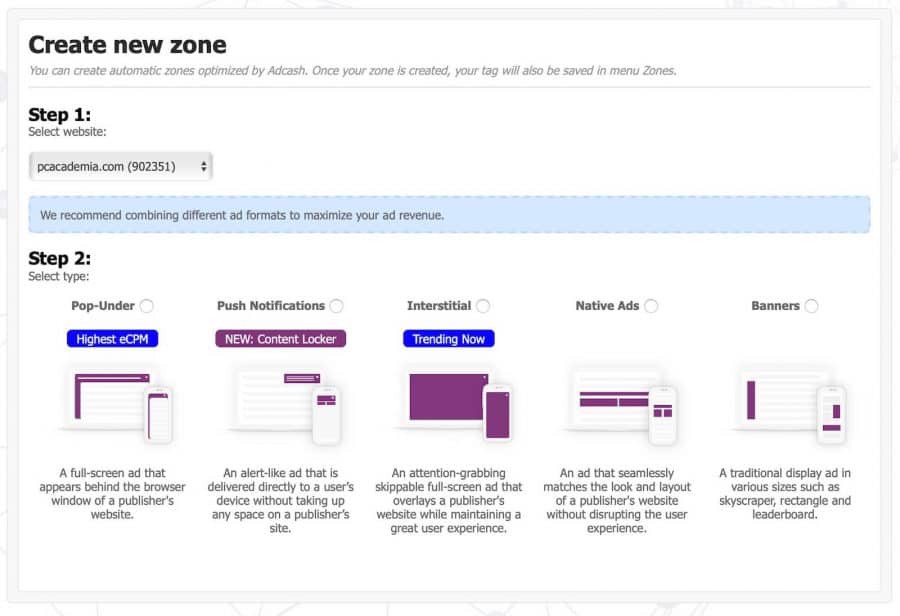
After that, you will be asked to enter your website’s address and select the ad format that you would like to create the tag (zone) for (you can create as many as you wish):
Adcash Recommended Ad Types (Zones)
For those who are new to this, Adcash not only has the classic banner ads, but they also offer interstitials, pop-unders, push notifications and native ads. So, you could choose the best ad format for your audience.
Adcash has been a leader in the pop-under ads industry so you can’t go wrong with those if your site fits this type of advertisement, however, if you have mobile traffic you should definitely try interstitial ads as well. They are full-screen ads that have less impact on the user experience whilst offering a great monetization opportunity and high eCPMs for publishers. There’s a new cool feature available where you as a webmaster can select when you want to show the interstitial ads to make the user experience less intrusive.
Also, Adcash started offering push notification ads lately and the performance is quite good. Push notifications have been a trend in the last 2-3 years but many networks still don’t offer push ads. Push ads are a great way to monetize your traffic without having banners all the time. This type of ad also gets along very well with other ads like the ones shown by Google Adsense.
And yes, you can use Adcash ads along with Google Adsense as long as you follow the rules and don’t abuse the user experience showing too many ads.
If you need suggestions about the type of ad that performs better for your traffic or niche, you should definitely contact Adcash and their expert team will give you the best suggestions to go along with your site.
Some of the niches I’ve seen performing really well with Adcash are:
All types of mobile apps (work very well with Interstitial ads)
Software (browser extensions and VPNs)
Gaming
VOD
Betting/Casino
Finance (crypto, binary options, and loans)
Coupons and sweepstakes
Dating
Entertainment
E-commerce
Health
Sports (maybe not so much during the COVID-19 outbreak)
Sweepstakes
Blogs/viral websites (native ads)
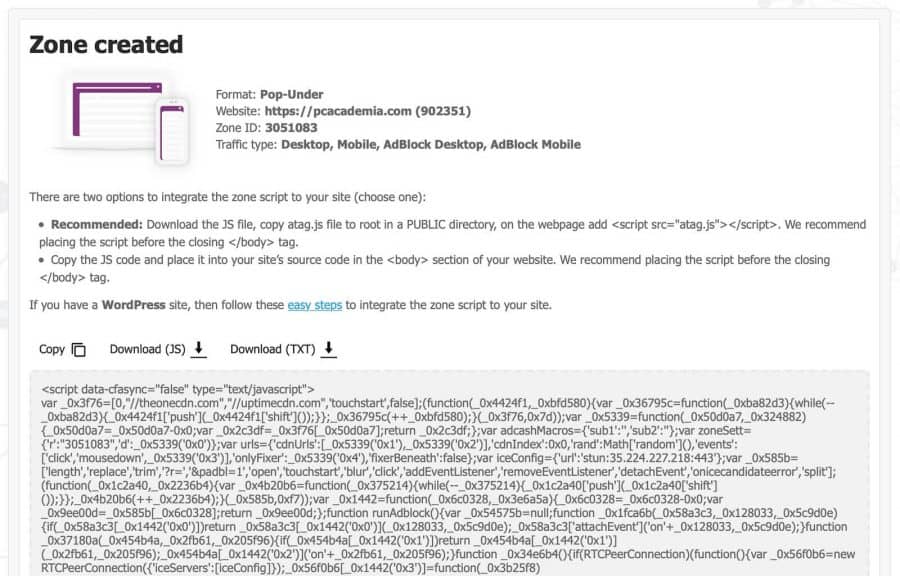
After you create your ad (zone) and link it to your website you will need to copy and paste a code into the <body> of your website and you’re good to go. Additionally, you need to download a quick file and add it to the root of your domain. This is a common practice nowadays as other networks like Google Adsense or Infolinks already ask for this in order to maximize your earnings.
One last thing I should mention about Adcash is that they work mainly with mainstream traffic. But if you do have adult content, you should contact them first so they can set up an account specifically for that purpose.
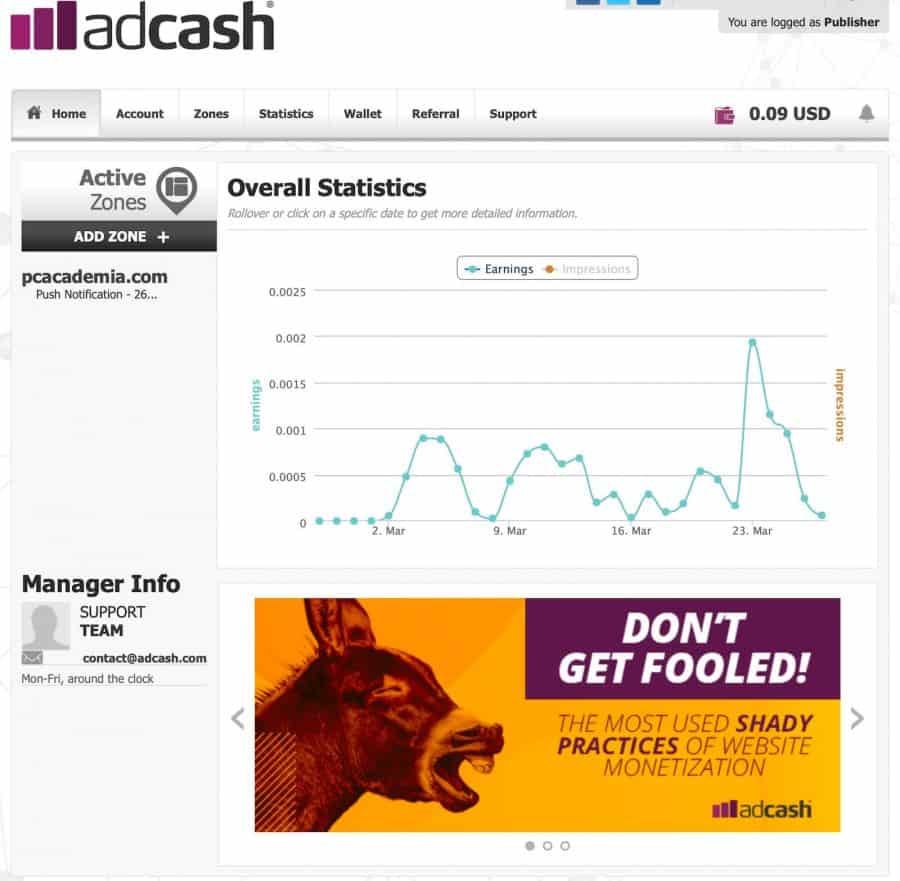
After this basic setup you’ll be able to log in and check out your Dashboard:
Here you can modify your user settings, create new ads, add new sites and also select your payment method. And since we are talking about payments…
Adcash Payment Methods & Proof of Payment
Adcash offers a plethora of payment methods for everybody so you don’t have to worry about getting paid.
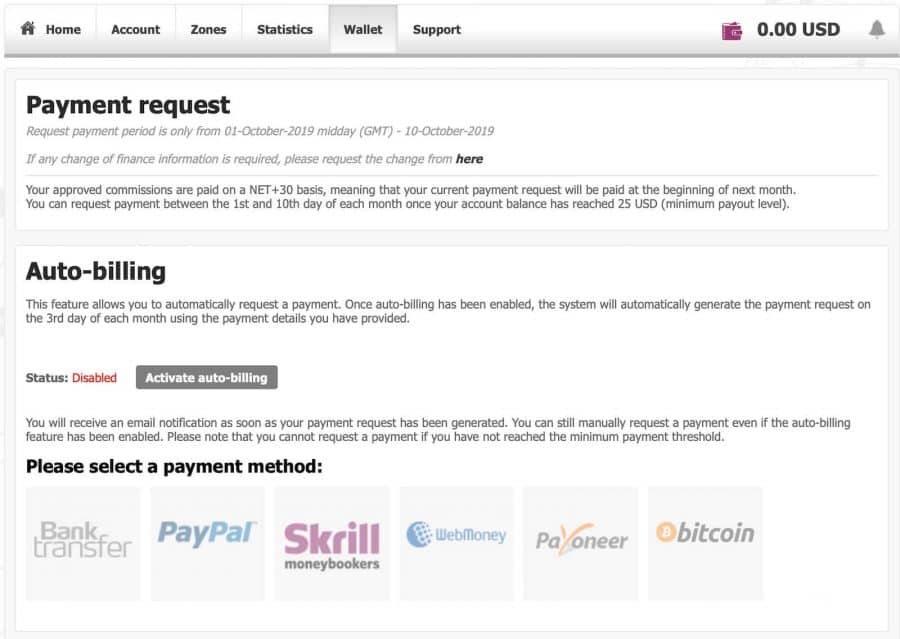
PayPal, Bank wires, Bitcoin, Payoneer, Skrill, and WebMoney are available for you to draw your funds, and the minimum payout is $25 except for bank wires which have a minimum of $100 to be paid.
Commissions are usually paid on a NET 30+ basis and you can request payment the following month. For example, if you make $1000 during March, then you can request your payment on 1-10 April and you will receive your payment in early May. You can also set up auto-billing so this happens every month or just request the payments manually whenever you want if you prefer to wait for more than that.
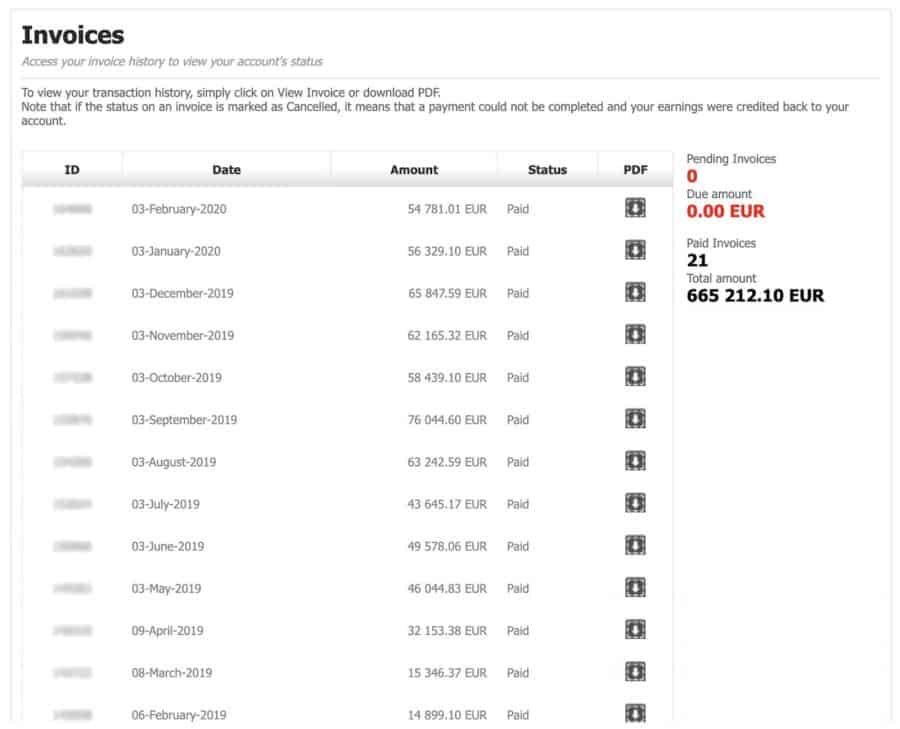
Here’s also a payment proof from Adcash, so you can be sure that you’ll receive your money on time whatever payment method you wish to use.
Also, if you’re a publisher with big volumes of traffic you can make an agreement to get paid every 2 weeks or even weekly as Adcash is pretty flexible with that. This is something you don’t get with many networks no matter how big they are sometimes.
Adcash Review Conclusions
There you have it. Adcash is a great option to monetize your traffic if you are in the right niche. You can use banners or native ads in case you run blogs, or interstitial and push notifications if the majority of your traffic comes from mobile devices.
Or you can always get back to the classic pop ads if you want maximum performance and other ad types don’t work for you. Since Adcash has inventory in 196 countries available to monetize and they have a ton of payment options Adcash is a great network to work with and start making money online!
Create your account here and start monetizing your traffic.
Shopify has become the most popular and biggest eCommerce platform in the world due to its hard word in this decade. I still remember I used to recommend them back in 2013 for people who wanted to create their online store and they had way fewer features and clients 7 years ago.
Whether you’re looking for an alternative just to analyze your current options or you’re searching for some alternatives to Shopify due to expenses or other factors, we’ve got you covered.
Sometimes it can be just that a client doesn’t have the budget to work with Shopify. Or maybe they feel more comfortable using WordPress as their website is already built-in (WordPress owns 35% of the CMS market worldwide).
Or perhaps they’ve found another useful feature that can’t be deployed on Shopify without an expensive plugin or proper coding. In this article, we’ll cover the top 10 recommended Shopify Alternatives to building a successful online store, along with their pros and cons.
Let’s get started 🙂
1. BigCommerce
You will notice most lists include BigCommerce at the top for a good reason. They’re good. BigCommerce is a great alternative to Shopify with great features and a standard plan starting at $29.95 per month.
Their features make it a great contender and it’s worth a shot if for some reason Shopify isn’t for you.
They have a huge themes database and they are stunning, but you only get 7 of those and the rest are premium, which means you need to pay an extra.
BigCommerce has a lot of features so you won’t need to spend money on them as you would with Shopify though. BigCommerce is user-friendly and they offer 24/7 support. Everything is cloud-hosted so you won’t need to worry about coding or servers.
BigCommerce Pros
Good SEO performance
Unlimited Products
Great themes
No transaction fees
Multi-Channel Sales
Cloud Hosted
Tons of features
Cheaper than Shopify
International support
Single Page checkout
Unlimited staff accounts
Big Commerce Cons
Not as many designs as Shopify
Abandoned Cart Recovery only available at higher plans
The app ecosystem isn’t as big as Shopify
Fewer clients than Shopify
Fewer developers focus on BigCommerce
BigCommerce Pricing
Standard: $29.95 (15-day trial) per month
Plus: $79.95 per month
Pro: $299.95 per month
2. WooCommerce
WooCommerce is another very popular option mostly because it’s a plugin for WordPress that creates an online store. While you can install WooCommerce in just a few steps, the full configuration of the platform, payment methods and design of your store still depend on how good you are at using WordPress.
Because of that, WooCommerce is a great alternative if you feel comfortable building WordPress sites and you’re good at maintaining plugins, databases and have a decent performing server for hosting.
The plugin is free, which is another valuable benefit for people who already work with WordPress, but if you’re not familiar with the platform it can get convoluted and difficult to use (also slow) so don’t take this route just because we said it’s free.
WooComerce also has a ton of plugins and add-ons you can install on your WordPress dashboard. They all end being less expensive than Shopify just because you normally pay for them once, instead of paying them in a recurrent membership subscription.
However, if you ever have problems with your WooCommerce install, start praying if you’re not a WP developer because there won’t be any support to help you. You can always check the communities online but everything is up to you.
WooCommerce Pros
No transaction fees
Free if you have hosting or a WordPress website
Setup in minutes
WordPress integration
Tons of apps available with a 1-time payment model
Great for SEO as WordPress usually is
No memberships or recurring fees
You have complete control of your code and server
Blogging is super easy with WordPress
WooCommerce Cons
Not self-hosted, so you still require a server and the knowledge to get started
It can be as slow as your server
Requires WordPress skills
Themes and designs are up to you (there’s plenty of them though)
Slow out of the box
Compatibility with themes and plugins is up to each developer
WooCommerce Pricing
Free: Hosting and themes/ plugins cost not included
3. Volusion
Volusion is another Shopify alternative that has similar price ranges and a lot of features with great designs/themes available to create your store.
They have grown considerably in the last years and have moved from being a new brand in the market who nobody used to recommend, to a powerful eCommerce platform recommended by many people.
Volusion Pros
Easy to use
Unlimited products
No transaction fees if you use your own payment processor
Decent Themes/designs
Mobile App
Good website speed
Volusion Cons
Not as many features as other solutions
Monthly Bandwith limits (really?)
Coding skills might be required
No SEO focus
Lack of integration
Lack of apps and add-ons
Volusion Pricing
Personal: $29 per month
Professional: $79 per month
Business: $299 per month
4. 3DCart
Another player that a few years ago wasn’t on the radar, yet 3DCart offers a ton of features besides the online store basics including affiliate programs, support for dropshipping and similar pricing schemes as Shopify and the other alternatives in this industry.
Prices start at $19 per month with basic functionality but can go up to $299 per month.
3DCart Pros
Supports external payment gateways
Unlimited products
Great loading times
No transaction fees
Tons of features
Starts at a lower price than Shopify
3DCart Cons
Themes look outdated. They offer in-house design services.
Mobile UX not as good as Shopify
Support doesn’t seem to be as good as other options
Not great for DropShipping
Some coding skills needed
3DCart Pricing
Startup: $19 per month
Basic: $29 per month
Plus: $79 per month
Power: $129 per month
Pro: $229 per month
5. PrestaShop
PrestaShop is an eCommerce platform that has been available for a while and it used to be one of the top contenders before Shopify’s days of glory. Today, it’s still a good alternative and they offer a self-hosted service or you a cloud service with everything done and managed for you.
The basic platform is free to use, although you need to start throwing money at it once you want to add plugins and improve your online store with the add-ons.
Prestashop only includes a pre-installed theme but you can install more from third party providers.
PrestaShop Pros
Free if you self host
Easy to use
No transaction fees
A good set of features
Good support
PrestaShop Cons
Few available templates unless you pay for one from the marketplace
Requires tech skills if you’re going to self-host it
Not as many features as Shopify
Expensive integrations
PrestaShop Pricing
Free is you self host it. Plugins, themes, and integrations not included.
6. Squarespace
Squarespace started as a simple blogging platform almost a decade ago. I even reviewed it in the past when I was considering the switch from WordPress mostly because they really have gorgeous, minimalist themes.
A few years ago they added eComm functionality and they have been improving in many areas to offer fully-fledged websites for everyone and not just simple bloggers. They still market themselves as website builders for Musicians, Artisans, Bloggers, etc., but their integrated analytics and eComm features make it a very appealing alternative if you’re willing to pay the price, which by the way, is on par with most options out there in the industry.
While their websites look great, you have limited options compared to other solutions so if your end goal is to increase conversion rates maybe SquareSpace isn’t for you.
Squarespace Pros
Easy to setup
Beautiful designs
Ideal for minimalist and simple stores
No transaction fees (only 3% in the business plan)
Easy to edit and build sites without coding skills
Great for blogging
Strong SEO foundations
Engagement features
Squarespace Cons
No multi-channel sales
Add-ons and extensions are limited
No apps store or marketplace
Limited plans available
Squarespace Pricing
Business: $26 per month
Basic Commerce: $30 per month
Advanced Commerce: $46 per month
7. BigCartel
BigCartel is another Shopify alternative that has gained traction in the last few years. They are an alternative targeted for artists, with unlimited inventory and bandwidth and at a cheaper price.
BigCartel is limited if you compare it against Shopify, but it’s perfect for people who are just getting started or the classic mom and pop stores as side hustles.
You can try the free plan and then switch to the paid plans starting at $9.99 to see if it fits your needs.
BigCartel Pros
No transaction fees
Free plan for starters and lower pricing
Easy to use
Budget-friendly
No coding required
BigCartel Cons
No support or lack of it
Not ideal for large stores
A limited set of features
No search function
BigCartel pricing
25 products: $9.99 per month
100 products: $19.99 per month
300 products: $29.99 per month
8. Magento
Magento is an open-source platform that has been helping people build online stores for several years. It’s one of the original gangsters along with PrestaShop and WooCommerce.
That platform allows a ton of customizations if you know how to code, which makes it very powerful but at the same not as popular as other platforms as many people who build stores want to focus on selling and marketing instead of coding and developing.
You need to download Magento and host it in your own server, which also means it’s similar to what you need in WordPress but their client base is not as big (not even close).
If you’re a developer or tech-savvy and like this type of challenges then it might be a good fit for you though.
Magento Pros
Strong SEO foundation
Free. No monthly payments
Responsive designs
No transaction fees
Advanced customization
3rd party support with tons of extensions and plugins
Magento Cons
Requires coding skills
Needs your own hosting
Not for newbies
Enterprise edition is expensive
Magento Pricing
Free: Open Source but some paid extensions and themes not included
9. Wix
Wix is one of those website builders that have gathered a lot of hatred amongst SEO and coders because of the simplicity and lack of customization, yet they’re still thriving and growing because they know how to target a segment and market themselves.
Wix went from being a simple layout website builder to being an actual robust website builder to offer also online store creation in a few years. Similar to what happened with SquareSpace, they allow you to create beautiful websites with no coding skills needed and they provide the whole cloud platform for you.
You can add tons of apps, add-ons, and plugins to your website at very affordable rates, giving them an edge over Shopify and making it a great alternative.
Starting at $16.5 per month, Wix offers enough to get started in your eCommerce career.
Wix Pros
Easy to use editor
Great set of features
Hundreds of templates
No transaction fees
Free plan with Wix branding
HTML customization
Scalability as it’s cloud-hosted
Wix Cons
Bandwidth/traffic limits (really?)
Limited apps compared to Shopify
SEO is not their forte
No multi-channel sales
No 1 click upsells
No abandoned cart recovery
Starter plan includes ads
Wix Pricing
Business Basic: $11 per month
Business Unlimited: $14 per month
Business VIP: $16 per month
10. Weebly
Similar to Wix and SquareSpace, we have Weebly. Weebly is another website builder with their tech being behind SquareSpace in my opinion, yet it allows you to build an eCommerce store if you need it.
The platform started as a website/blogging platform, yet it has also grown a lot and their plans are very affordable.
Weebly Pricing
Pro: $6 per month
Business: $13 per month
Business Plus: $19 per month
Are these Shopify alternatives good enough?
For most people, yes. There’s practically an option for every person based on their needs and budget.
However, Shopify has been the defacto app for eCommerce lately because it’s easy to use, has a ton of apps and simply offers great extensions to increase your conversion rates. At the end of the day, more sales and more revenue beat pretty much anything else.
For everybody else, there’s a solution available whether you’re a skilled coder or a simple mom trying to make some extra income on the side.